

To patch remote laptops, manage them through a service they can reach over the internet, then verify that updates actually install. An employee does not usually need to visit the office for routine updates, and a VPN does not have to be a requirement when the device management setup can securely communicate with the laptop over the internet.
The important distinction is between sending an update policy and confirming the laptop installed the update. Devices may be offline, waiting for a restart, or reporting an error. A sound remote patch management process accounts for those situations instead of treating an assigned policy as proof that a laptop is up to date.
Use a management service that works beyond the office
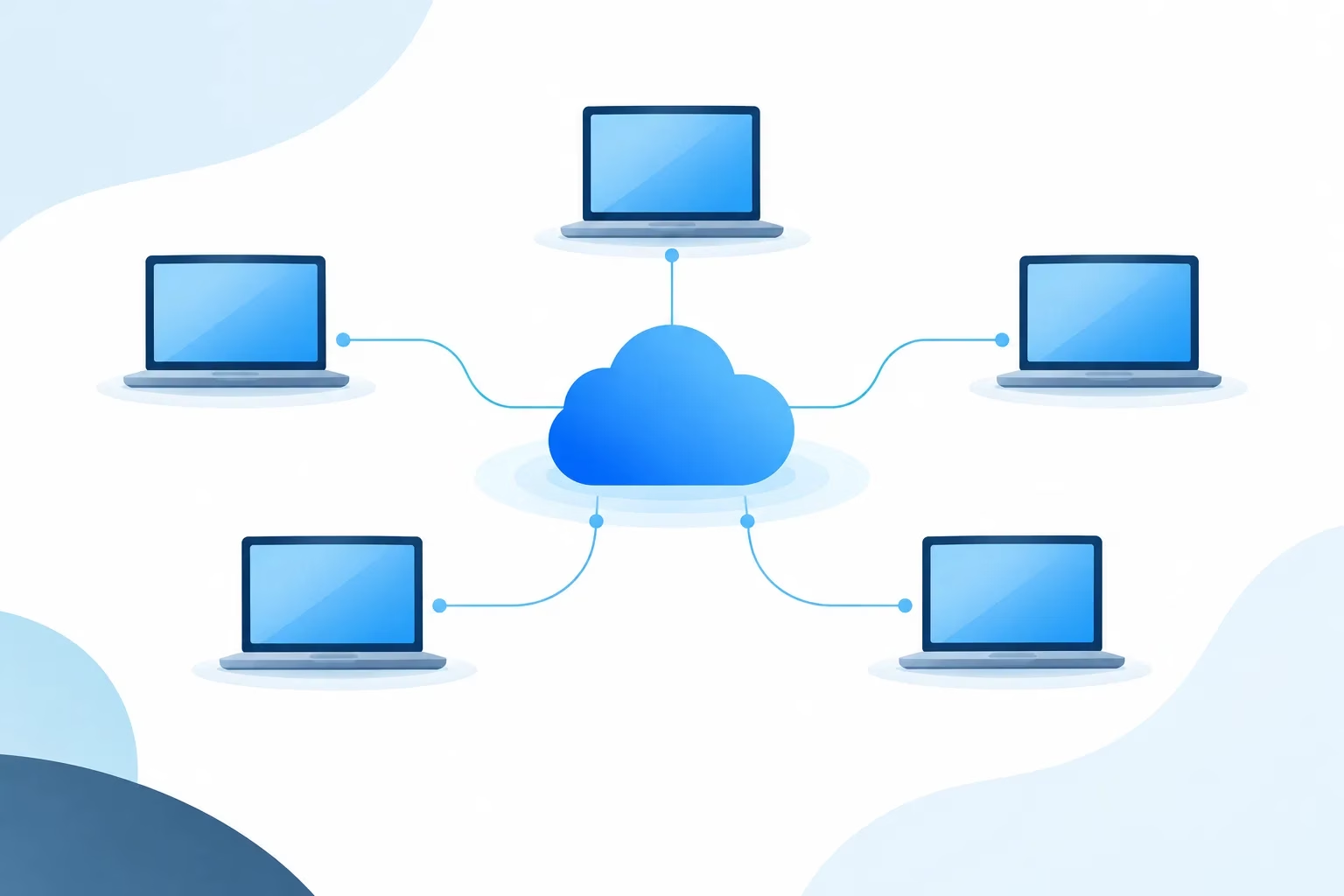
Start with a management tool that can reach enrolled devices when they connect to the internet. Depending on your environment, this might be a cloud-based device management platform or another endpoint management service configured for remote access. The right approach depends on the laptops, operating systems, ownership arrangements, and tools your business already uses.
This approach means office network access is not the gate that determines whether a laptop can receive a policy. CISA’s remote patch management guidance discusses patching devices used away from the office. For Windows environments, update policies can also be organized through Windows Update ring policies. The details will differ for other operating systems and management tools.
A VPN may still be needed for other business resources or specific management tasks. But if routine update delivery depends entirely on a laptop connecting to an office network or VPN, employees who rarely connect can fall behind. Review which parts of your setup truly require that connection and whether remote devices have a supported path to receive updates.
Separate update delivery from update verification
Track more than whether a policy was assigned. Useful endpoint visibility includes which devices are enrolled, when each last checked in, what update status it reports, and whether an installation needs a restart or has encountered an error. Keep operating-system updates and application updates in view, since they may be handled through different tools or processes.
Make “unknown” a status that prompts investigation, not an assumption that the laptop is compliant. A device that has not checked in cannot provide current confirmation of its patch state. Microsoft’s Windows Update for Business reports overview explains the reporting available for Windows update status. Businesses using other systems should identify the equivalent reporting in their tools.
It also helps to decide who reviews stale or failed device reports and who contacts the employee. Without a clear owner, an alert can sit unnoticed while the laptop remains out of view. The goal is a repeatable follow-up process: identify the device, check its reported status, find out whether it is online and usable, and resolve the cause or document the next action.
Plan for the reasons updates get stuck
Remote laptops are not always online when an update is available. An employee may have shut down a device, be traveling, have unreliable internet, or use a laptop only occasionally. An update may also be waiting for a restart, or the device may report an installation error.
- Offline or inactive: Check the last reported contact and ask the employee to connect the laptop to the internet and leave it available for management to communicate with it.
- Restart pending: Explain what the employee needs to do and when a restart is appropriate. Avoid leaving restart instructions buried in a general update notice.
- Installation error: Review the error details and determine whether the employee can resolve it with guidance or needs IT support.
- Repeatedly stale status: Confirm the device is still in use, enrolled, and assigned to the correct management setup. Escalate devices that remain unreported rather than treating their status as current.
For people who travel or have limited connectivity, give them a straightforward way to report problems and coordinate time to connect. Avoid assuming that a laptop is available just because it belongs to an active employee. If a device is out of use, record that context and decide how to handle it under your organization’s process.
Schedule updates around the workday
Updates and restarts can interrupt work, so set expectations before a rollout. Use staged groups where your tools support them: start with a suitable test group, review results, and then broaden deployment. This can help surface compatibility problems before an update reaches a wider set of employees. The specific policy options depend on the operating system and management platform.
Tell employees what to expect, how to save their work, whether a restart will be needed, and where to ask for help if an update fails. Choose a process that gives people a reasonable chance to complete updates without leaving devices indefinitely unpatched. When a restart is required, communicate it clearly and follow up on laptops that continue to report it as pending.
For broader advice on keeping routine technology work from being overlooked, see Zevonix’s article on what can happen when IT maintenance is ignored.
Set different expectations for company and personal devices
A company-owned laptop enrolled in your management system is not the same as an employee-owned device used for work. Before managing personal devices, decide what work access requires, what device information your organization needs, and what employees should know about enrollment and updates. The process may differ by ownership, operating system, and the tools in place. Make the expectations clear rather than assuming one policy fits every device.
For any device your business relies on, keep an accurate inventory and a way to identify its user or responsible contact. When employees join, change roles, or leave, update device assignments and management access as part of the normal equipment process. That helps keep reports meaningful and makes it easier to follow up when a laptop stops checking in.
Frequently asked questions
Do remote employees need a VPN to receive updates?
Not necessarily. If the device management service and update process are configured to reach enrolled laptops over the internet, routine updates may not require an office VPN. Some other business resources or management tasks may still need one.
How can IT tell whether an update installed?
Use device reporting to review the laptop’s last check-in, reported update status, errors, and any pending restart. An assigned policy alone does not confirm installation.
What should happen when a laptop stops checking in?
Treat its patch status as unknown until it reports again. Check whether it is in use, contact the employee, and investigate enrollment or connectivity issues if the device remains stale.
How often should remote laptops be patched?
Set a documented update cadence that fits your systems, business needs, and security priorities. Review how your tools handle urgent updates as well as routine ones, and confirm that devices are actually reporting successful installation.
Make remote patching an ongoing routine
Keeping remote laptops patched is an ongoing operating process: manage devices through an internet-reachable service, verify reported results, communicate restart expectations, and follow up when status is missing or an update fails. Zevonix provides managed IT services and strategic IT guidance for businesses. If you want to discuss how to improve device visibility and update follow-up, contact Zevonix.
Stay Informed
Want smarter insights without the noise? Get our latest ideas and strategies delivered right to your inbox.
We respect your privacy. Unsubscribe at any time.